AI links open with a title + excerpt (these tools can't fetch the page themselves) — use "Copy full article" to paste the complete text for a fuller summary.
Introduction In this article, we will learn Power BI. This article is most helpful for source maintaining as far as GitHub users are concerned. Requirements
- Download Power BI desktop here.
- Window 10 operating system.
- Publish repository in GitHub.
What is Power BI? Power BI is a business analytical tool, which is powered by Microsoft**.** This tool provides interactive visualizations & self-service business intelligence capability. The end user can create reports & dashboards themselves without the need of admin's help. Features
- Report review
- Analytics
- Data connectivity
- Query editor
Let us see getting the same GitHub reports. If you have no GitHub login, click here. After installation, open Power BI in Windows 10. 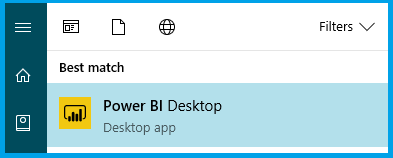 It is take some time to launch the Application first time.
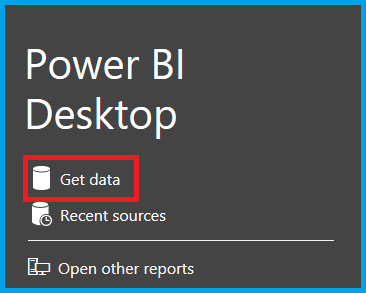
  Now, main Window appears and select GetData.
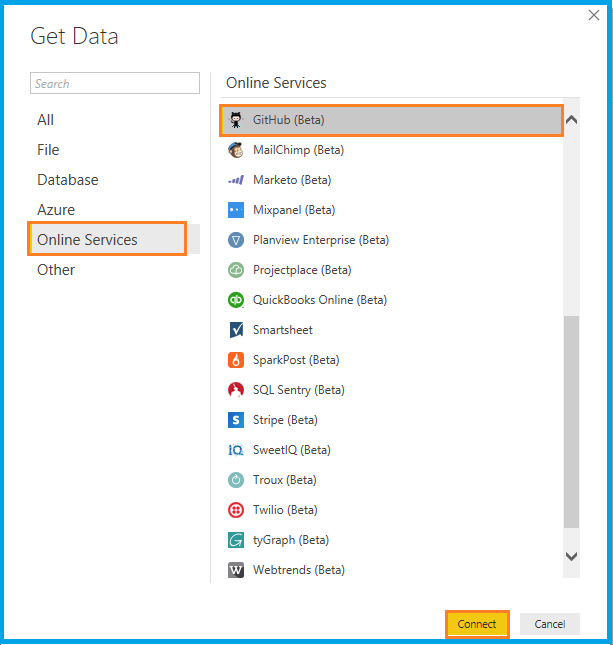
  Again, one popup Window appears as Get Data. You can choose the online Services, select GitHub (Beta) and click connect button.
  It will ask some details from your GitHub login.
 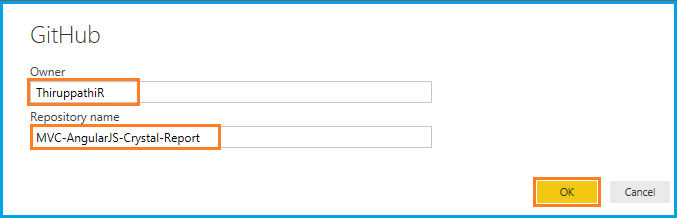 Once you click the OK button, it will ask you to login to your GitHub account for authorizing propose. After logging in, it takes your permission to access your personal user data & repositories.
 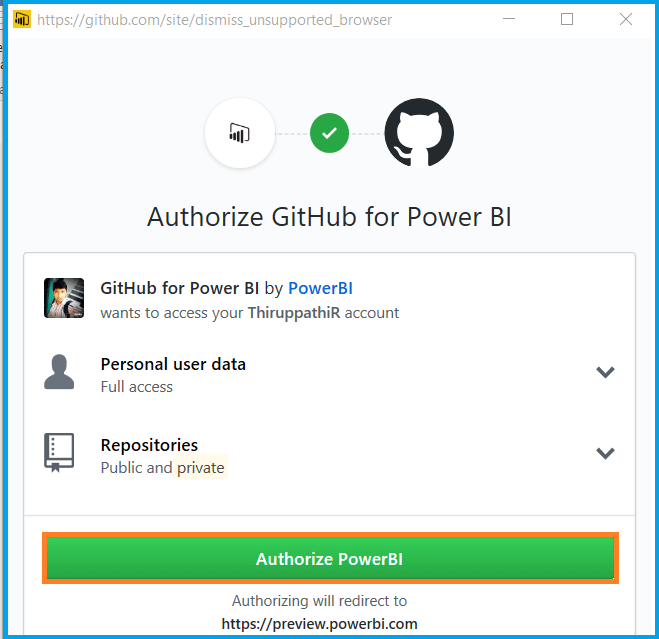 If you click Authorize Power BI button, the page will automatically redirect to get the data.
 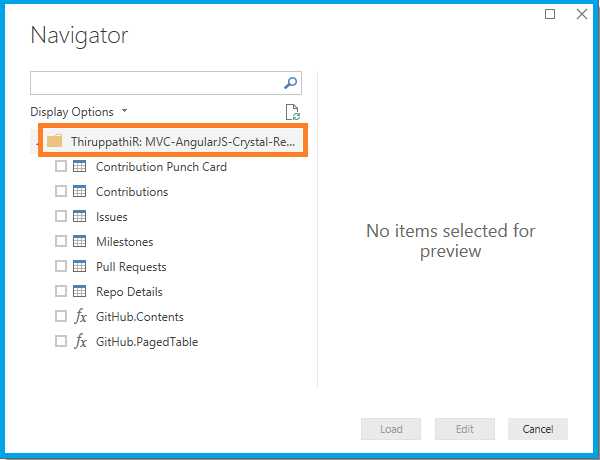 Navigator Window will appear & display the repository, which we have entered, which is based on repository information tables. Whatever information, if you know, select the tables on the display list. Afterwards, click Load button.
 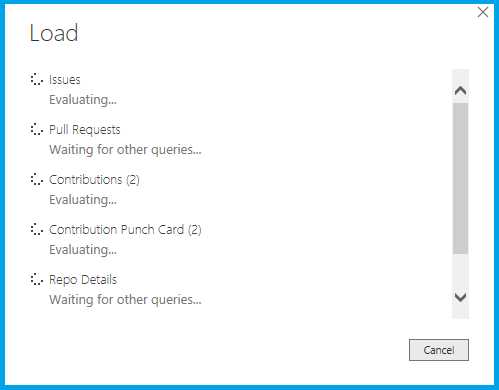 Once the data is loaded, selected tables are shows in right Fields slider.
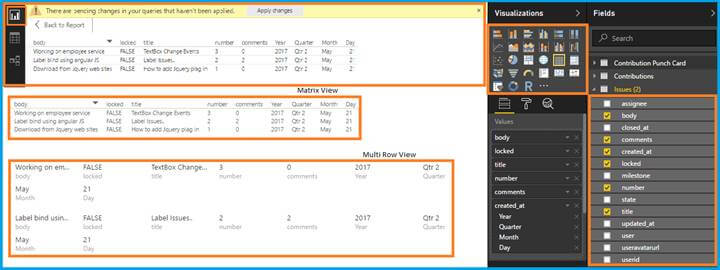
 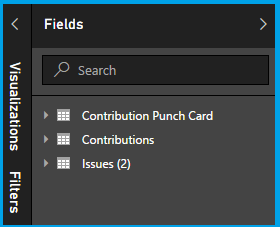 Start getting the report in Report Window, as per your desire, as shown below. I have shown sample reports as
- Table view
- Matrix view
- Multi Row view
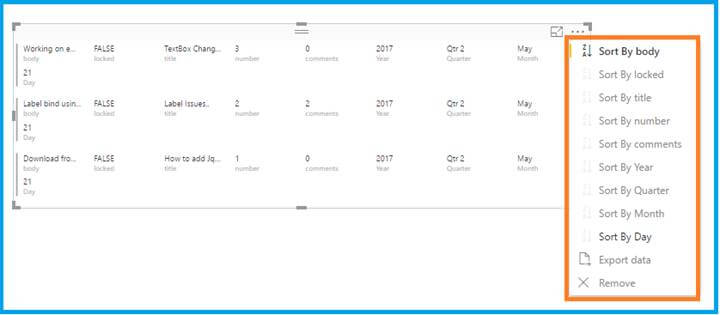
 You can use filtering and sorting & then export the data in report header.
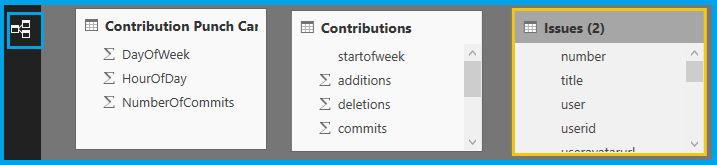
  As far as left side menu is concerned, if you select table icon, we can see the actual table data.
  If there is any relationship of our selected table, we can see in Relationship icon in side menu.
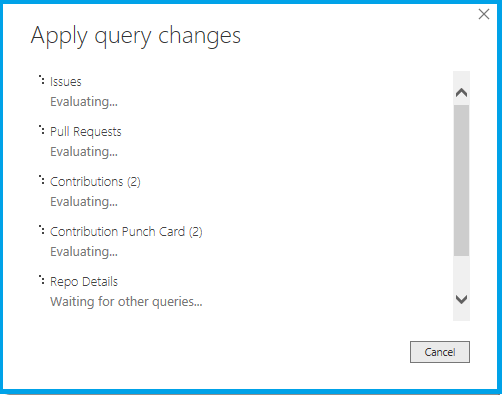
  If we made any changes in this linked repertories, there is no need to login again & again. Just click Apply button on the notification message.
  It will be getting the latest data for your reports.
  Conclusion In this article, we have learned about Power BI. If you have any queries, please tell me through the comments section, since your comments are very valuable.
Comments
Be the first to comment.