Learn MVC Using AngularJS And Crystal Report
AI links open with a title + excerpt (these tools can't fetch the page themselves) — use "Copy full article" to paste the complete text for a fuller summary.
Introduction
In this article, we will learn MVC, using AngularJS and Crystal Report to help us handle server side data, using Visual Studio 2015.
What Is Crystal Report?
Crystal Report is a business intelligence application. Crystal Report is powered by SAP. It is used to design and generate reports from a wide range of data sources.
Why We Are Using SAP Crystal Report
- Provides a powerful reporting tool.
- Creates a real-time operational report.
- Works with the web, Windows, and mobile devices.
- Makes flexible and customizable reports.
Tools Installation
We will download the Crystal Report IDE from this link. After registration, “exe” will be downloaded automatically. 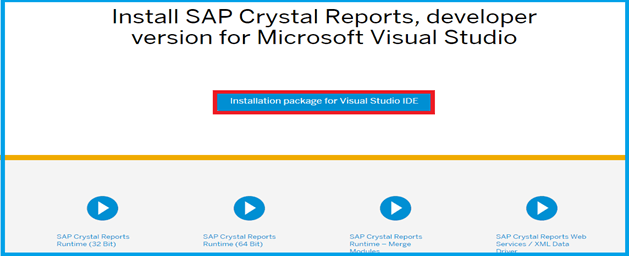 After completing the installation, restart Visual Studio.
Create an MVC Project
Open Visual Studio 2015.  Go to Menu >New > Click Project > it will open the New Project popup.
 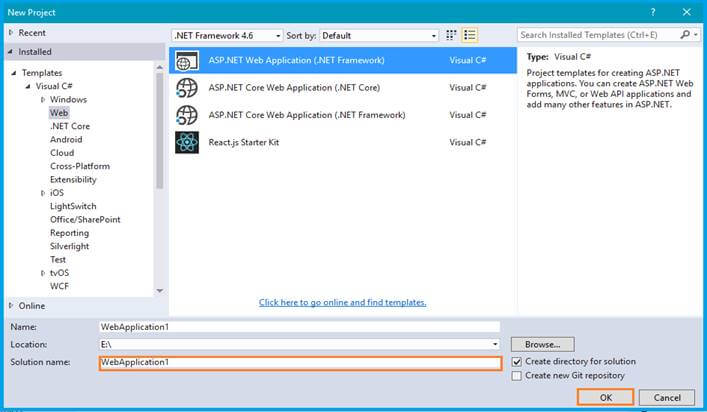 Select ASP.NET project and give to the solution name, and then click the OK button. Again one popup should appear that's called 'New ASP.NET Web Application.'
 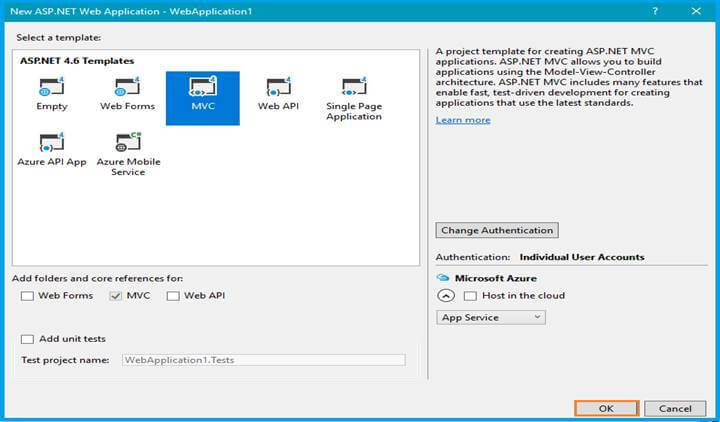 Select MVC Template and click OK to start the project. Configure AngularJS in this MVC project. Create a new folder called Report and right click on the folder. Add Crystal Report into the Solution Explorer.
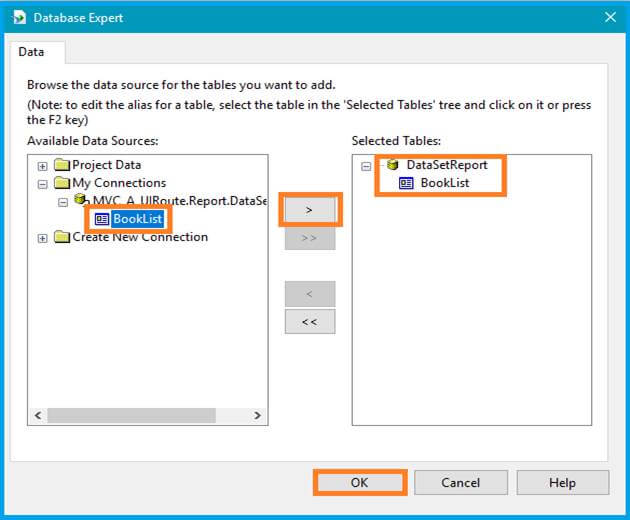
 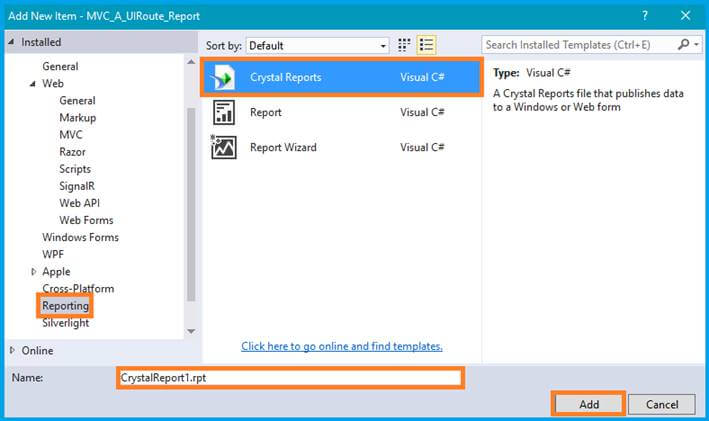 In this Report folder, add one Dataset for server-side data binding. This will be used to design the customizable reports.
  Use this DataSet to export your data for the designing and developing of the report.
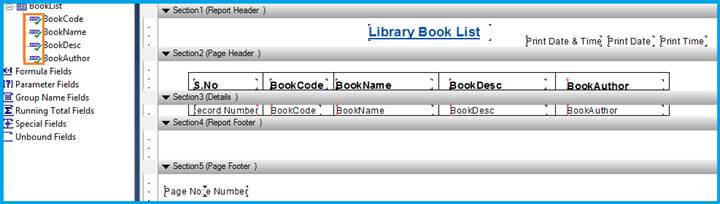
  Easy-to-use] drag-and-drop controls are used in the design, as shown.
  Write a method to access the data and bind to the data from the Server to Crystal Report in the Controller. I have written the code given below in my home controller file.
C# Code
public ActionResult ExportExcel()
{
List
Proceed, as shown below.
rd.Load(Path.Combine(Server.MapPath("~/Report"), "ReportBookList.rpt"));
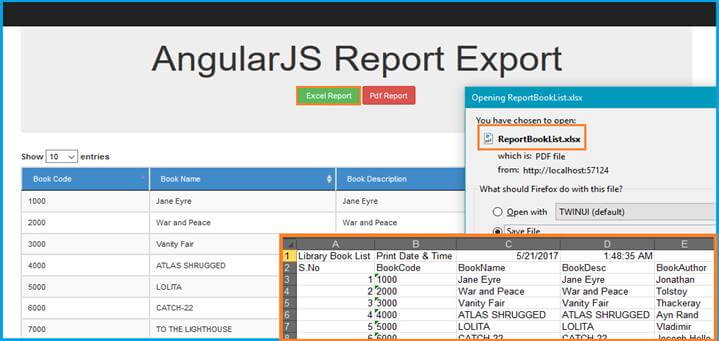
In this article, I have demonstrated only Excel and PDF reports.
Stream stream = rd.ExportToStream(CrystalDecisions.Shared.ExportFormatType.ExcelWorkbook);
You can export 16 different types of report formats using Crystal Reports. 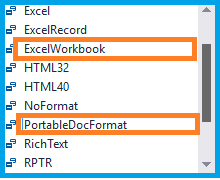 We have finished the server part of the work. Now we can start writing the code to the HTML and Angular JS controller file.
$scope.ExcelReport=function() { $window.open("Home/ExportExcel", "_blank"); } $scope.PdfReport = function () { $window.open("Home/ExportPdf", "_blank"); }
JavaScript Code
Before writing this code, you must inject the $Window keyword into the Angular Controller.
uiroute.controller('BookController', function ($scope, BookService, $window)
Call the above JavaScript function in your HTML buttons.
<button class="btn btn-success " ng-click="ExcelReport()">Excel Report</button> <button class="btn btn-danger " ng-click="PdfReport()">Pdf Report</button>
That's it! That's all the client side part of the work. Now, you can run the application.
Output 1
Output 2
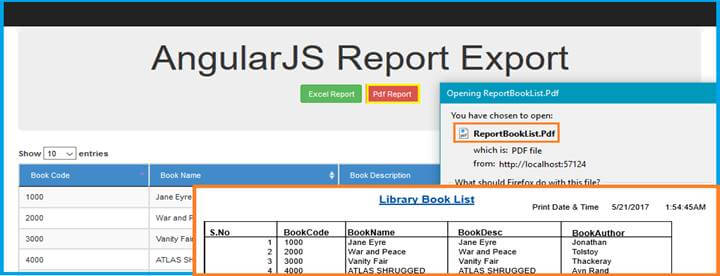 Finally, we succeeded in exporting our data using Crystal Report in MVC AngularJS.
Source Code Download
Conclusion
In this article, we learned MVC, using AngularJS and Crystal Report. If you have any queries, please tell me through the comments section**.** Happy Coding!
Comments
Be the first to comment.