AI links open with a title + excerpt (these tools can't fetch the page themselves) — use "Copy full article" to paste the complete text for a fuller summary.
Introduction
In this article, we will learn MVC using Angular Wizard and Datatable from the server side, and work with the stored procedure using Visual Studio 2015.
Why Use Wizard?
Wizard means the process is moved step-by-step. It allows you to logically divide the groups of data. That way, the user can enter valuable data. In this article, we are going to:
- Create a database.
- Create a stored procedure.
- Create an MVC Application.
- Do all this using Angular Datatable.
Create a Database
Open SQL Server 2016. Click the "New Query" window and run the query given below.
USE [master] GO CREATE DATABASE [test] CONTAINMENT = NONE ON PRIMARY ( NAME = N'test', FILENAME = N'C:\Program Files\Microsoft SQL Server\MSSQL13.MSSQLSERVER\MSSQL\DATA\test.mdf' , SIZE = 8192KB , MAXSIZE = UNLIMITED, FILEGROWTH = 65536KB ), FILEGROUP [DocFiles] CONTAINS FILESTREAM DEFAULT ( NAME = N'FileStream', FILENAME = N'C:\Program Files\Microsoft SQL Server\MSSQL13.MSSQLSERVER\MSSQL\DATA\FileStream' , MAXSIZE = UNLIMITED) LOG ON ( NAME = N'test_log', FILENAME = N'C:\Program Files\Microsoft SQL Server\MSSQL13.MSSQLSERVER\MSSQL\DATA\test_log.ldf' , SIZE = 8192KB , MAXSIZE = 2048GB , FILEGROWTH = 65536KB ) GO ALTER DATABASE [test] SET COMPATIBILITY_LEVEL = 130 GO IF (1 = FULLTEXTSERVICEPROPERTY('IsFullTextInstalled')) begin EXEC [test].[dbo].[sp_fulltext_database] @action = 'enable' end GO ALTER DATABASE [test] SET ANSI_NULL_DEFAULT OFF GO ALTER DATABASE [test] SET ANSI_NULLS OFF GO ALTER DATABASE [test] SET ANSI_PADDING OFF GO ALTER DATABASE [test] SET ANSI_WARNINGS OFF GO ALTER DATABASE [test] SET ARITHABORT OFF GO ALTER DATABASE [test] SET AUTO_CLOSE OFF GO ALTER DATABASE [test] SET AUTO_SHRINK OFF GO ALTER DATABASE [test] SET AUTO_UPDATE_STATISTICS ON GO ALTER DATABASE [test] SET CURSOR_CLOSE_ON_COMMIT OFF GO ALTER DATABASE [test] SET CURSOR_DEFAULT GLOBAL GO ALTER DATABASE [test] SET CONCAT_NULL_YIELDS_NULL OFF GO ALTER DATABASE [test] SET NUMERIC_ROUNDABORT OFF GO ALTER DATABASE [test] SET QUOTED_IDENTIFIER OFF GO ALTER DATABASE [test] SET RECURSIVE_TRIGGERS OFF GO ALTER DATABASE [test] SET DISABLE_BROKER GO ALTER DATABASE [test] SET AUTO_UPDATE_STATISTICS_ASYNC OFF GO ALTER DATABASE [test] SET DATE_CORRELATION_OPTIMIZATION OFF GO ALTER DATABASE [test] SET TRUSTWORTHY OFF GO ALTER DATABASE [test] SET ALLOW_SNAPSHOT_ISOLATION OFF GO ALTER DATABASE [test] SET PARAMETERIZATION SIMPLE GO ALTER DATABASE [test] SET READ_COMMITTED_SNAPSHOT OFF GO ALTER DATABASE [test] SET HONOR_BROKER_PRIORITY OFF GO ALTER DATABASE [test] SET RECOVERY FULL GO ALTER DATABASE [test] SET MULTI_USER GO ALTER DATABASE [test] SET PAGE_VERIFY CHECKSUM GO ALTER DATABASE [test] SET DB_CHAINING OFF GO ALTER DATABASE [test] SET FILESTREAM( NON_TRANSACTED_ACCESS = FULL, DIRECTORY_NAME = N'DocFileDirctory' ) GO ALTER DATABASE [test] SET TARGET_RECOVERY_TIME = 60 SECONDS GO ALTER DATABASE [test] SET DELAYED_DURABILITY = DISABLED GO EXEC sys.sp_db_vardecimal_storage_format N'test', N'ON' GO ALTER DATABASE [test] SET QUERY_STORE = OFF GO
Create a Table
I will create a new table that is based on the booking information.
CREATE TABLE [dbo].[WizardMaster]( [BookCode] [varchar](10) NULL, [BookName] [varchar](50) NULL, [BookDesc] [varchar](500) NULL, [BookAuthor] [varchar](50) NULL, [Email] [varchar](50) NULL, [Password] [varchar](10) NULL, [Name] [varchar](10) NULL, [PhoneNo] [varchar](10) NULL, [Addess] [varchar](500) NULL ) ON [PRIMARY] GO
After creating the table, add some data, as given below.
Create a Stored Procedure
I have written the stored procedure for my data operations, so run SP as given below. In this procedure, I have used the "Select" and "Insert" operations. 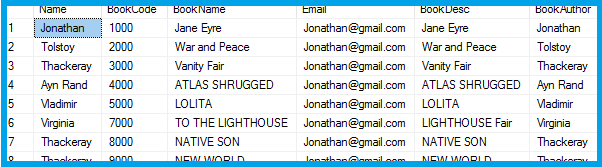
Create an MVC Application
Open Visual Studio 2015.  Go to Menu, click New->New Project ->select Visual C# under templates-> ASP.NET Web Application.
 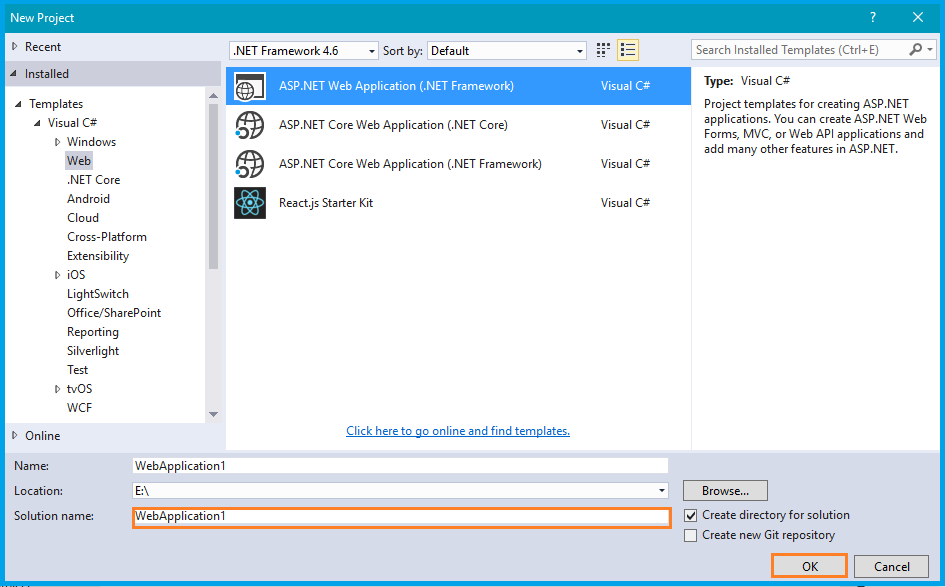 Once you click OK, one more window opens. Select MVC.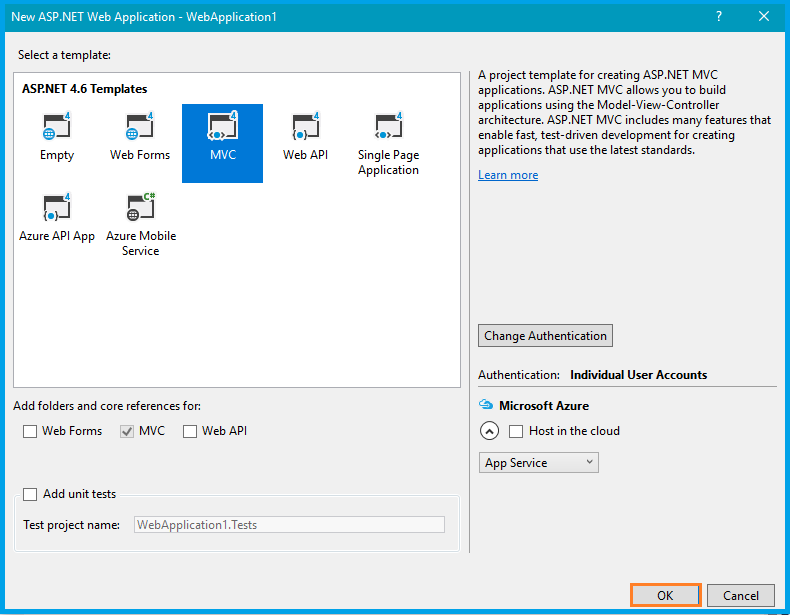
HTML Design
Step 1
Here, we are going to get our email input and matching password set up using "ui-validate-watch" and "ui-validate".
Create Account — Step 1
Output 1
Step 1 output given below: 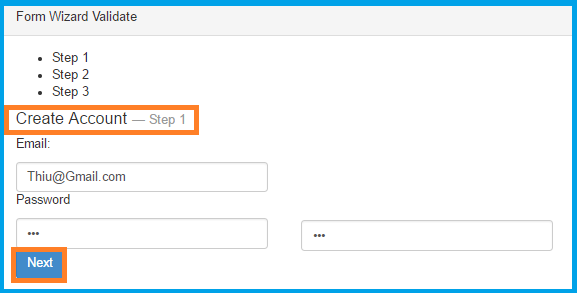
Step 2
Once you click the "Next" button, you have completed Step 1. In Step 2, I have used ng-pattern="/^[0-9]+$/" and required a keyword used for validation in the HTML form element.
Your Social Networks — Step 2
Output 2
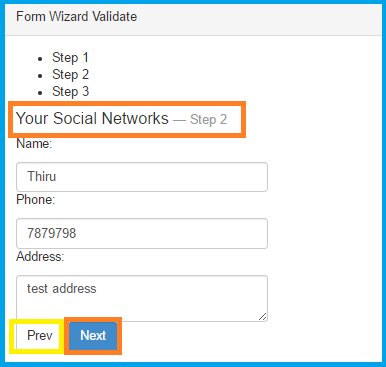 If you need go back, click the "Prev" button.
Step 3
After clicking the "Next" button in step 2, it will show as Step 3.
Personal details — Step 3
Excellent ! You've completed all steps.
Output 3
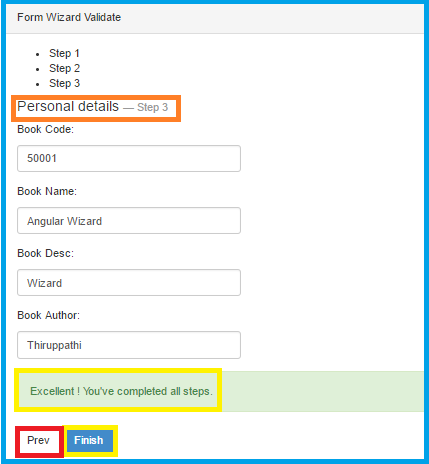 If you click the "Finish" button, data should be added into the tables.
Angular Module
angular.module('uiroute',['ui.router', 'datatables']);
Create and design an HTML page with the table. Mention datatable=ng. Now, bind the Server data.
| User Name | Book Name | Book Description | Book Author Name | Phone No | Address | |
| {{ model.Name }} | {{ model.Email }} | {{ model.BookName }} | {{ model.BookDesc }} | {{ model.BookAuthor }} | {{ model.Phone }} | {{ model.Address }} |
Code Behind
Create a Model folder in the Solution Explorer and create a new class in the Model folder.
public class BookModel { public string Email { get; set; } public string Password { get; set; } public string Name { get; set; } public string Phone { get; set; } public string Address { get; set; } public string BookCode { get; set; } public string BookName { get; set; } public string BookDesc { get; set; } public string BookAuthor { get; set; } public string Mode { get; set; } }
Write the method given below in the home controller. LoadData displays the data in the Datatable and another table is using data manipulation.
[HttpPost] #region LoadData public JsonResult LoadData(BookModel Param) { List < BookModel > BookList = new List < BookModel > (); using(var con = new SqlConnection(ConfigurationManager.ConnectionStrings["DbSqlCon"].ConnectionString)) { var cmd = new SqlCommand("WizardBook_SP", con); cmd.CommandType = CommandType.StoredProcedure; cmd.Parameters.Add(new SqlParameter("@Mode", SqlDbType.VarChar)).Value = Param.Mode; try { con.Open(); using(SqlDataReader DbReader = cmd.ExecuteReader()) if (DbReader.HasRows) { while (DbReader.Read()) { BookModel Books = new BookModel(); Books.Email = DbReader.GetString(DbReader.GetOrdinal("Email")); Books.Password = DbReader.GetString(DbReader.GetOrdinal("Password")); Books.Name = DbReader.GetString(DbReader.GetOrdinal("Name")); Books.Phone = DbReader.GetString(DbReader.GetOrdinal("PhoneNo")); Books.BookCode = DbReader.GetString(DbReader.GetOrdinal("BookCode")); Books.BookName = DbReader.GetString(DbReader.GetOrdinal("BookName")); Books.BookDesc = DbReader.GetString(DbReader.GetOrdinal("BookDesc")); Books.BookAuthor = DbReader.GetString(DbReader.GetOrdinal("BookAuthor")); Books.Address = DbReader.GetString(DbReader.GetOrdinal("Addess")); BookList.Add(Books); } } return Json(BookList, JsonRequestBehavior.AllowGet); } finally { con.Close(); } } }# endregion[HttpPost]# region EditData public string EditData(BookModel Param) { if (Param! = null) { using(var con = new SqlConnection(ConfigurationManager.ConnectionStrings["DbSqlCon"].ConnectionString)) { var cmd = new SqlCommand("WizardBook_SP", con); cmd.CommandType = CommandType.StoredProcedure; cmd.Parameters.Add(new SqlParameter("@Mode", SqlDbType.VarChar)).Value = Param.Mode; cmd.Parameters.Add(new SqlParameter("@Phone", SqlDbType.VarChar)).Value = Param.Phone; cmd.Parameters.Add(new SqlParameter("@Name", SqlDbType.VarChar)).Value = Param.Name; cmd.Parameters.Add(new SqlParameter("@Email", SqlDbType.VarChar)).Value = Param.Email; cmd.Parameters.Add(new SqlParameter("@PassWord", SqlDbType.VarChar)).Value = Param.Password; cmd.Parameters.Add(new SqlParameter("@BookCode", SqlDbType.VarChar)).Value = Param.BookCode; cmd.Parameters.Add(new SqlParameter("@BookName", SqlDbType.VarChar)).Value = Param.BookName; cmd.Parameters.Add(new SqlParameter("@BookDesc", SqlDbType.VarChar)).Value = Param.BookDesc; cmd.Parameters.Add(new SqlParameter("@BookAutor", SqlDbType.VarChar)).Value = Param.BookAuthor; cmd.Parameters.Add(new SqlParameter("@Address", SqlDbType.VarChar)).Value = Param.Address; try { con.Open(); cmd.ExecuteNonQuery(); return "Success"; } catch (Exception ex) { return ex.ToString(); } finally { if (con.State! = ConnectionState.Closed) con.Close(); } } } else { return "Model Error"; } }#endregion
Declare the connection string in Web.config file.
Create an Angular Controller and Service to get the data from the server side.
Angular Controller
controller('WizardController', function($scope, WizardService) { $scope.loadTable = function() { var Param = { Mode: 'GET' } var ServiceData = WizardService.loadGrid(Param); ServiceData.then(function(result) { $scope.LoadData = result.data; }, function() {}); } $scope.loadTable(); $scope.Save = function() { debugger; var Param = { Mode: 'ADD', Email: $scope.Email, Password: $scope.form.match1, Name: $scope.name, Phone: $scope.phone, Address: $scope.address, BookCode: $scope.BookCode, BookName: $scope.BookName, BookDesc: $scope.BookDesc, BookAuthor: $scope.BookAuthor } var ServiceData = WizardService.EditData(Param); ServiceData.then(function(result) { $scope.loadTable(); $scope.stepsDone = true; }, function() {}); } });
Angular Service
this.loadGrid = function(Param) { var response = $http({ method: "post", url: "Home/LoadData", data: JSON.stringify(Param), dataType: "json" }); return response; } this.EditData = function(Param) { var response = $http({ method: "post", url: "Home/EditData", data: JSON.stringify(Param), dataType: "json" }); return response; }
Do not forget to refer to the plugin files and JS file also.
Plug In
My Files
Once you are done with the process given above, your datable is ready to load. Thus, run the Application.
Output 5
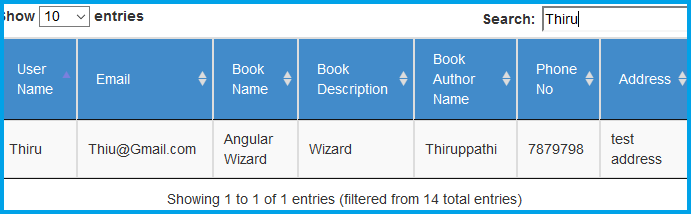 Here, I have used a simple Angular Wizard method.
Conclusion
In this article, we have learned MVC, using Angular Wizard. If you have any queries, please tell me through the comments section**.** Your comments are very valuable. Happy Coding!
Comments
Be the first to comment.