AI links open with a title + excerpt (these tools can't fetch the page themselves) — use "Copy full article" to paste the complete text for a fuller summary.
Angular UI is a routing framework for a client-side, single page application and navigates from one view to another view. Angular UI-Router, however, is not just the “Route URL”; it maintains the application views based on a hierarchical tree of state. UI-Router provides a different approach than ngRoute, which we will be going over in this article. Also, the Angular UI-Router GitHub page can be found here.
Why Do We Use Angular UI-Router?
ngRoute is an Angular Core module, which is good for a basic route concept, but UI-Router contributes two different types of concepts, which are given below.
- State of the Application.
- Nested views of the complex page.
Example of a Nested View
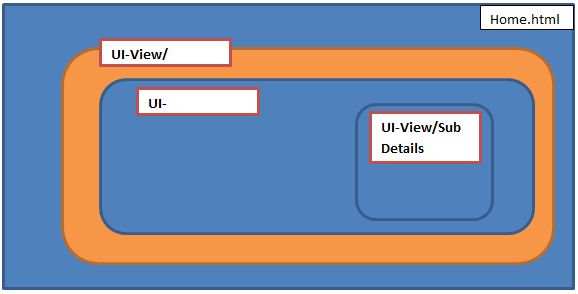
How to Use UI-Router in ASP.NET MVC
Step 1
Open Visual Studio 2017 and go to File > New > Project. Select the Web template and ASP.NET Web Application, as shown below: 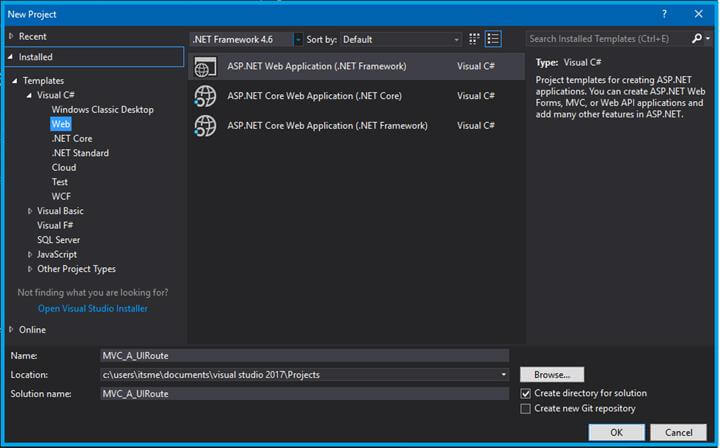
Step 2
Choose MVC in ASP.NET 4.6 templates. 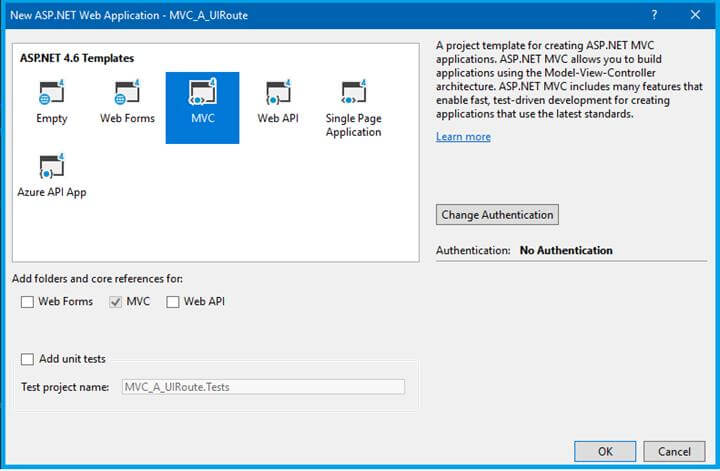 After the popup window, it will directly open the project solution, as shown below.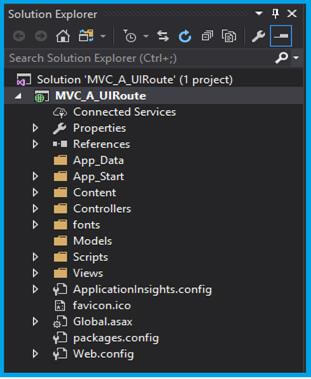
Step 3
Download AngularJS and the Angular UI-Router file.
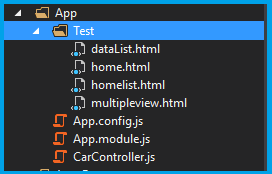
Create the new folder app, and add HTML and Javascript files, as shown above. Let’s show the file name and the code. home.html
homelist.html
div>Language List
- {{ Lang }}
datalist.html
    </tr>
</thead>
<tbody>

    <tr ng-repeat="Car in CarList">
        <td>{{ Car}}</td>
    </tr>

</tbody>
| Car List |
multipleview.html
App.module.js
var uiroute = angular .module('uiroute', ['ui.router']);
App.config.js
uiroute.config(function ($stateProvider, $urlRouterProvider) { $urlRouterProvider.otherwise('/home'); $stateProvider // State managing .state('home', { url: '/home', templateUrl: '/App/Test/home.html' }) // nested list with data .state('home.template', { url: '/template', template: 'Welcome to the C# Corner' }) // nested list with controller .state('home.list', { url: '/list', templateUrl: '/App/Test/homelist.html', controller: function ($scope) { $scope.Language = ['C#', 'VB', 'JavaScript','PHP']; } })
    // State with multiple views
    .state('multipleview', {
        url: '/multipleview',
        views: {
            '': { templateUrl: '/App/Test/multipleview.html' },
            'ViewOne@multipleview': { template: 'Welcome to the C# Corner!' },
            'ViewTwo@multipleview': {
                templateUrl: '/App/Test/dataList.html',
                controller: 'CarController'
            },
            'ViewThree@multipleview': {
                templateUrl: '/App/Test/homelist.html',
                controller: function ($scope) {
                    $scope.Language = \['C#', 'VB', 'JavaScript', 'PHP'\];
                }
            }
        }
    });
});
CarController.js
uiroute.controller('CarController', function ($scope) {
$scope.CarList = \['Audi', 'BMW', 'Bugatti', 'Jaguar'\];
});
Route Module:
“ui-router” - dependence module. “$stateProvider, $urlRouterProvider” –state & Route provider “$state”- Getting Parameter as a service “$urlRouterProvider.otherwise”-default route provider “ui-view” - template view directive. “ui-sref” -link directive. “uiroute” –this is the module name and mention the ng-app directive.
Step 4
Link the corresponding files in _Layout.html and mention the ui-view here, as shown below: index.cshtml
_Layout.cshtml
@Scripts.Render("~/bundles/jquery")
@Scripts.Render("~/bundles/bootstrap")
<script src="~/Plugin/angular/angular.min.js"></script>
<script src="~/Plugin/angular-ui-router/release/angular-ui-router.min.js"></script>
<script src="~/App/App.module.js"></script>
<script src="~/App/App.config.js"></script>
<script src="~/App/CarController.js"></script>
@RenderSection("scripts", required: false)
Step 5
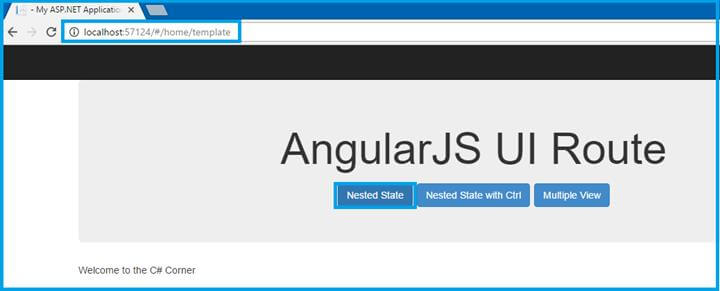
Once the above step completes, run the Application or click F5. The output is opened as a default browser. Output 1 - Following $State 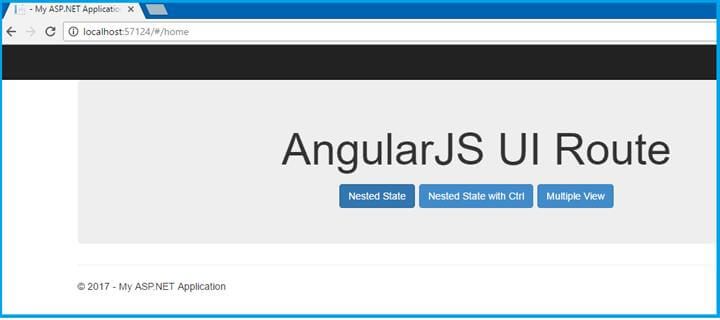 Output 2
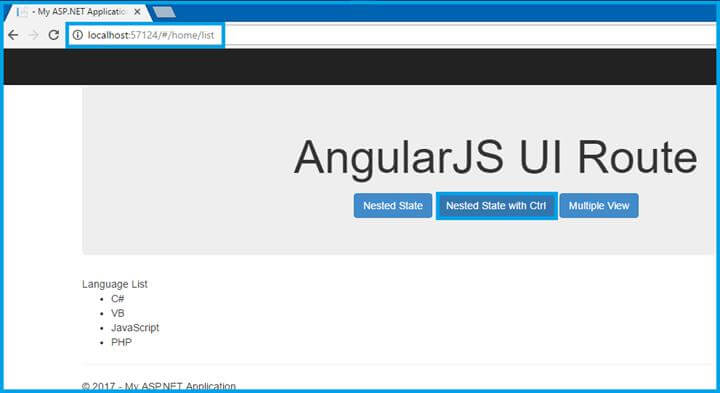
  Output 3 - Nested View Using Controller
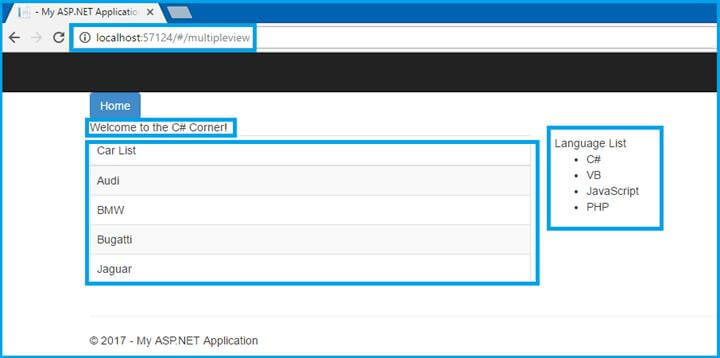
Output 4 - Multiple Views of the Single Page
Conclusion
In this article, we have seen MVC, using Angular UI-Router. If you have any queries, please ask me in the comments section. Happy Coding!
Comments
Be the first to comment.