AI links open with a title + excerpt (these tools can't fetch the page themselves) — use "Copy full article" to paste the complete text for a fuller summary.
Introduction In this article, we will learn about Amazon web service with MS-SQL database using local ms-sql management studio. Requirements
- Register AWS console
- SQL Server Management Server
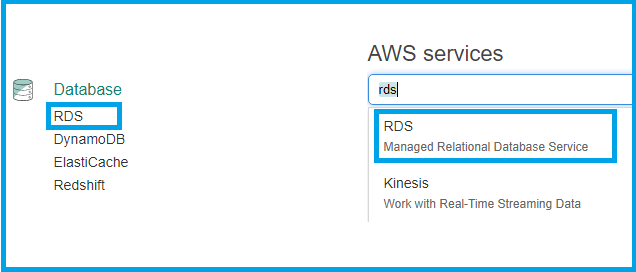
Let’s start Create SQL Database in AWS You want to login to the AWS console here. If you have no login register new users here. After registering amazon will provide one year free access. Home page will be loaded like the picture, after login. 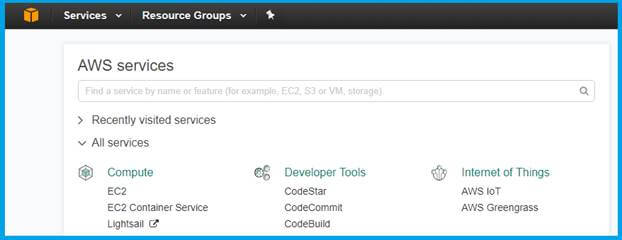 In there, you can select Database >RDS or search in text box as “RDS”
  The RDS Dashboard page will be loaded, when you clicked the RDS .
 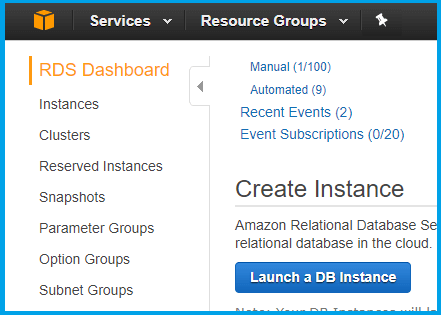 Now you can create a DB Instance, so click to above the button. Then it will show DB Engines
 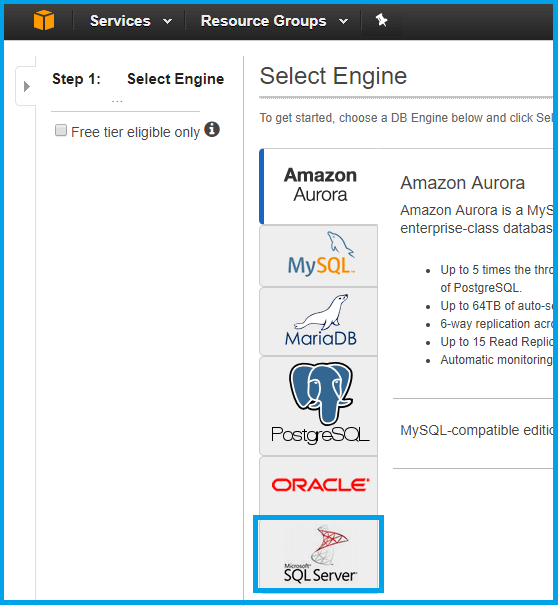 Yes, you can see more types of the databases they are providing, so you select MS-SQL Server. They are giving four types of SQL Servers.
- SQL Server Express
- SQL Server Web Edition
- SQL Server Standard Edition
- SQL Server Enterprise Edition
Free tier is eligible only in Express Edition, so you can select it. 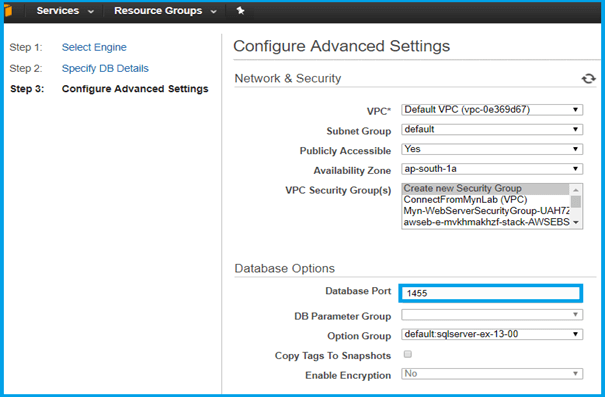 You will select default option & database port I have set as “1455”.
 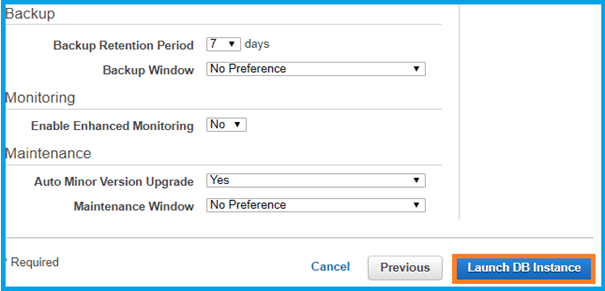 Set backup as your preference & click Launch DB Instance. Success message will show in the next page, like given below.
 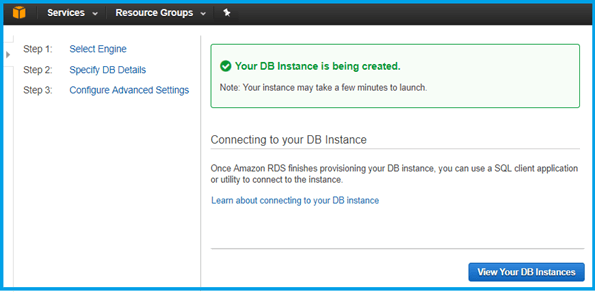 Then you can see your database status if you select view Your DB Instance.
 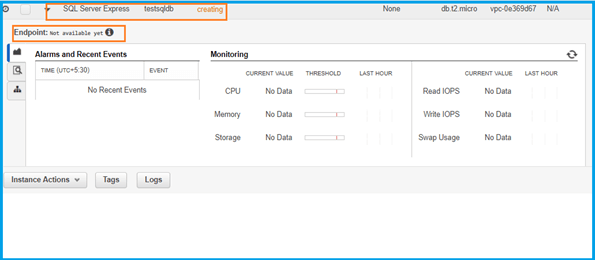 Your database status is “creating” & endpoint isn’t available yet. It will take up to 5 to 10 minutes. Then status change to “Available” and generate the endpoint
 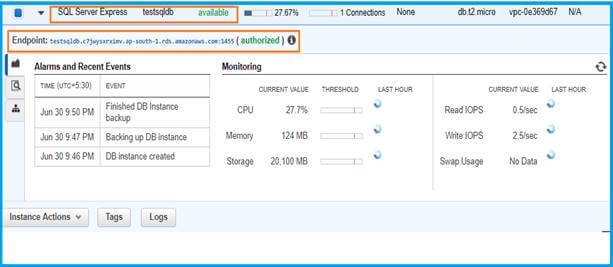 Connect to SQL Server Management Studio If you have SSMS in your PC open it. Otherwise you can download from here.
  Use copy & paste the Endpoint as the Server Name “testsqldb.c7jwysxrximv.ap-south-1.rds.amazonaws.com,1455”. Before the port number change from “:” to “,” follow the steps fill the user name & password whatever you made it during DB creation & connect.
 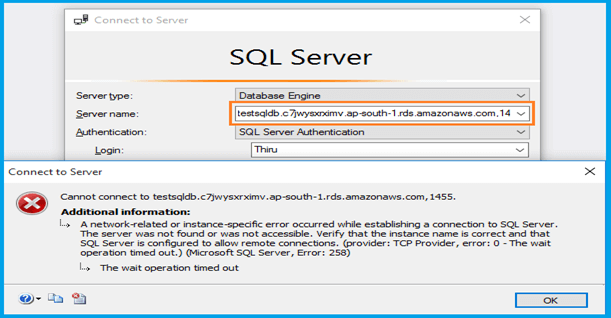 I have forgotten to create security group, so please find the menu Compute >EC2>Network & Security.
 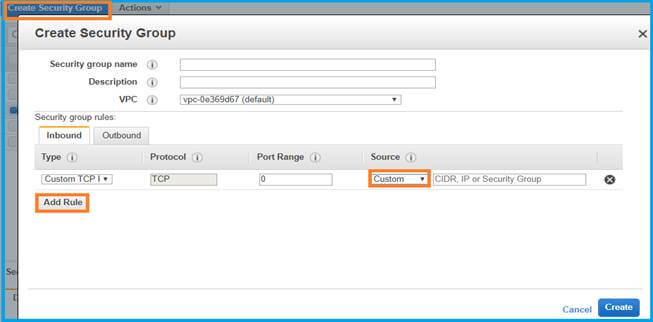 In this popup you want add rule and set to the source based on your choice. But I have set anywhere option. Default security group is already there, just update the source.
 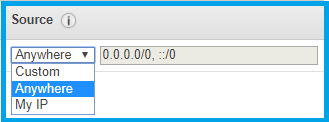 Now you can try to connect in SQL Server Management studio.
 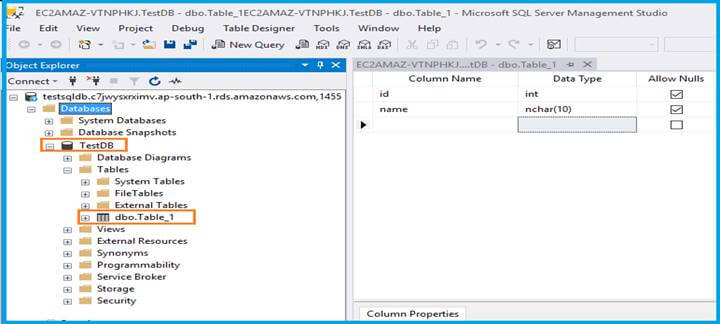 Oh yes finally I have connected & created sample DB & Table. Conclusion In this article, we have learned Amazon web service with MS-SQL database using local ms-sql management studio. If you have any queries, please tell me through the comments section**.** Because your comments are very valuable.
Comments
Be the first to comment.